WPMobE never asks for your wp-admin username and password. Instead, it connects using a WordPress application password — a separate, revocable credential built into WordPress core since version 5.6. Here's how to create one in under a minute.
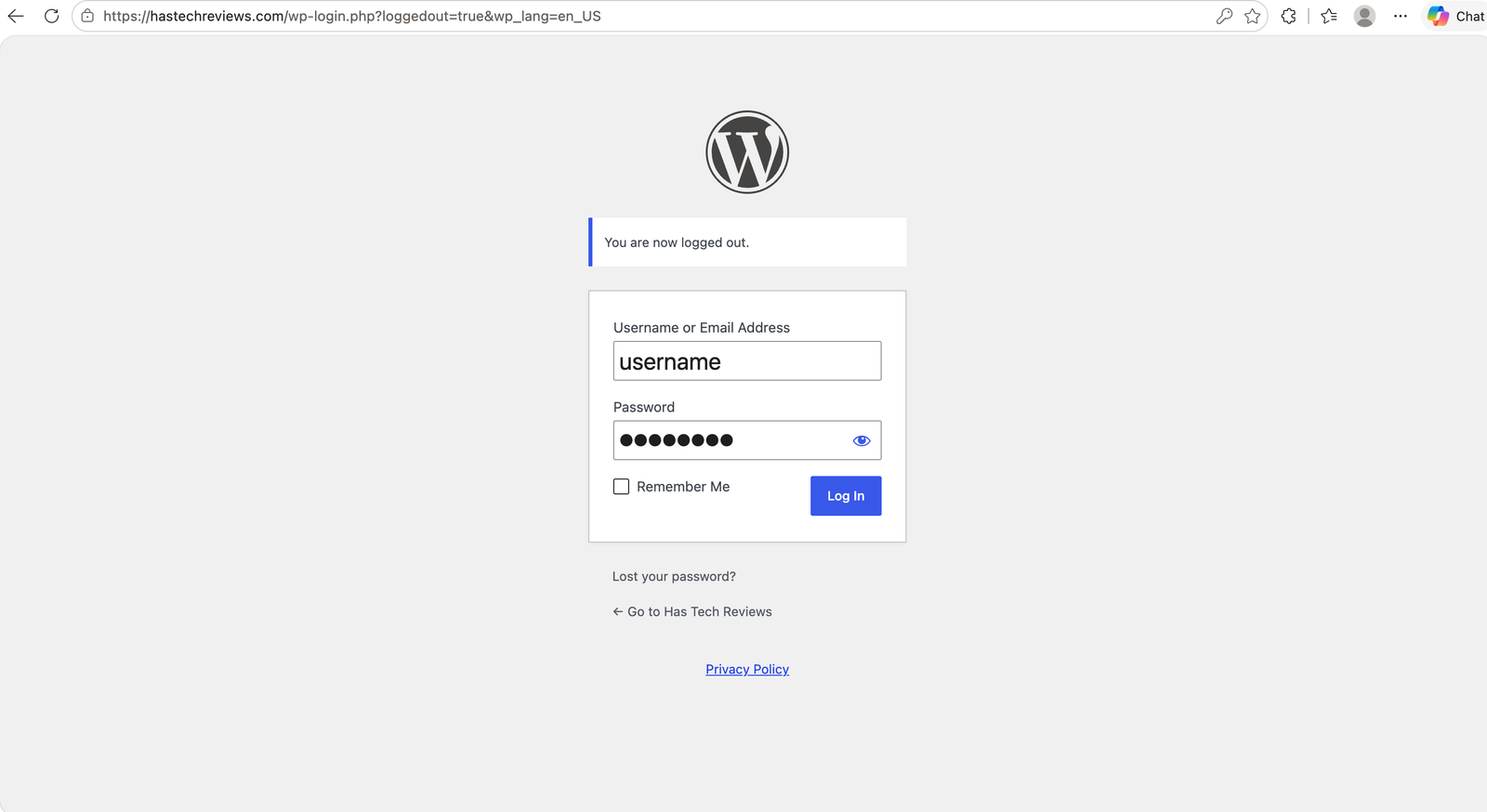
Go to yoursite.com/wp-admin and log in as usual with your normal wp-admin username and password. You only need to do this once, from a browser — WPMobE itself never sees this password.
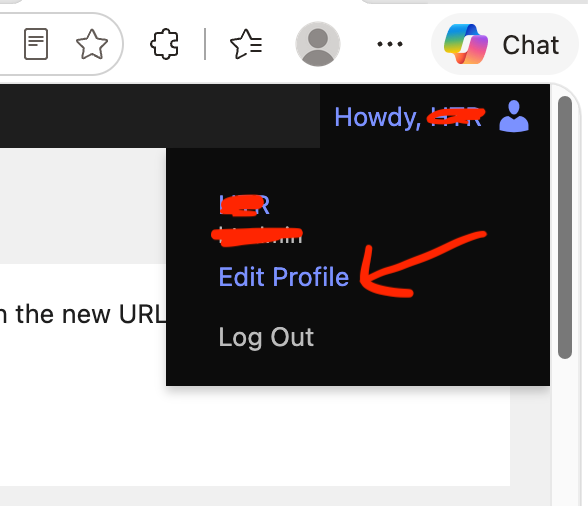
/wp-admin.In the top-right corner of the dashboard, hover over your name and click Edit Profile. This takes you to your user profile page, where application passwords are managed.
Scroll down to the Application Passwords section near the bottom of your profile page. Type a name you'll recognize later — for example WPMobE — then click Add Application Password.
WordPress will generate a one-time password shown as a group of random characters, like xxxx xxxx xxxx xxxx xxxx xxxx. Click Copy, or select and copy it manually.
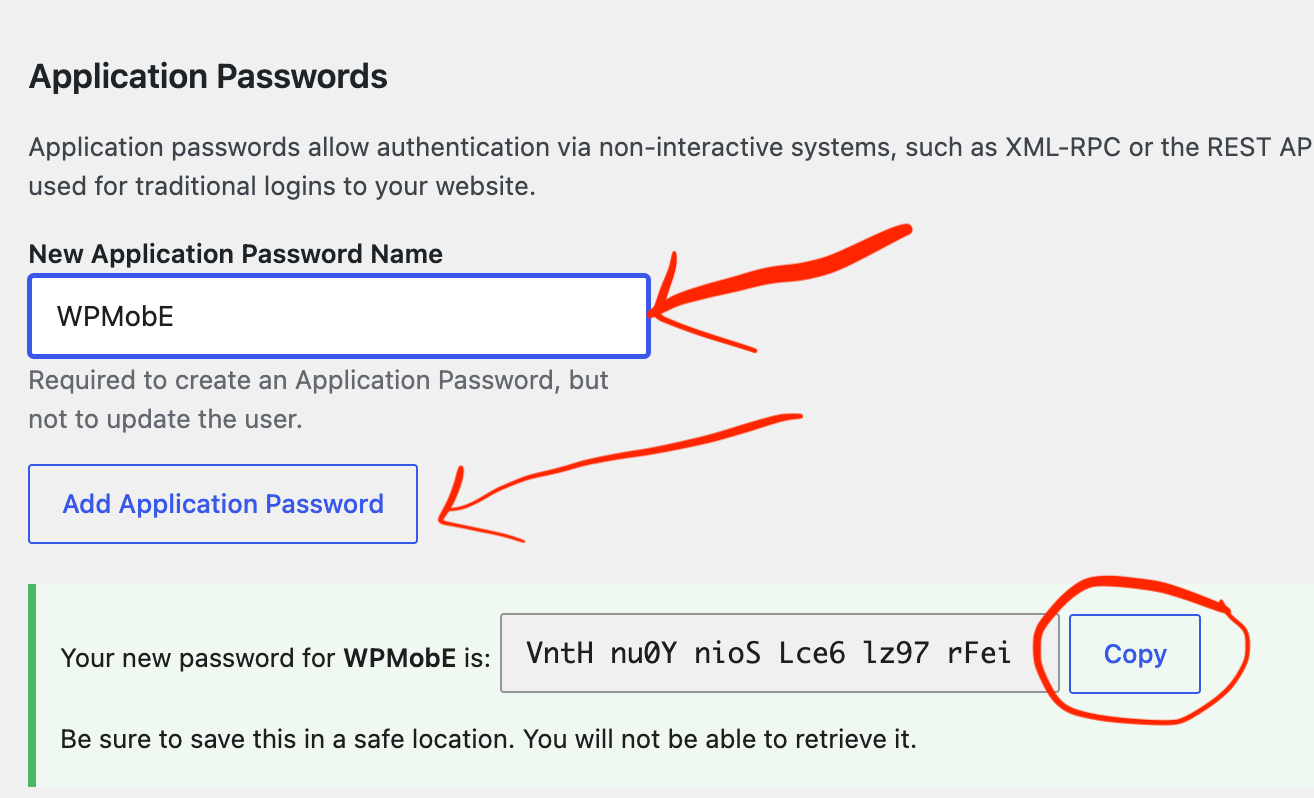
WordPress only shows the generated password once. If you navigate away before copying it, you'll need to delete it and generate a new one. Spaces in the password are optional and can be typed with or without them.
Back in the app, tap Add Site, then enter your site's URL, your WordPress username, and paste the application password you just copied. WPMobE encrypts it before storing it and uses it only to talk to your site's REST API.
An application password can't be used to log in to wp-admin — it only grants API access, and only for the user it was created under.
You can revoke it any time from the same Application Passwords section, without changing your main WordPress password.
This usually means your site isn't served over HTTPS (application passwords require it), your WordPress version is older than 5.6, or a security plugin has disabled the feature. Ask your host or developer to confirm HTTPS is enabled and that the application_passwords feature hasn't been disabled via a filter.
Yes — that's exactly what it's designed for. Each application password is a distinct, revocable credential scoped to your account, so you're never sharing your real login. If something looks wrong, revoke it instantly and the connection stops working immediately.
You can, but we recommend generating a separate one per device (e.g. "WPMobE — iPhone", "WPMobE — Work Laptop") so you can revoke access to a single device without disconnecting the others.
WordPress never shows it again once you leave the page. Just delete that entry under Application Passwords and generate a new one — it takes a few seconds.
Grab your application password and add your first WordPress site to WPMobE in under two minutes.
